Many posts on the advantages of
clang_complete have already been posted. For example, there's
a demonstration of the plugin on Mac. If you can understand Chinese (or you have a translator that
truly understands it), you may even look at more sites, such as
Chen's post.
The
authors of the above posts are likely to work in the IT sector. For new
comers of programming, they may like to start from zero. On which
platform can they start from? I'd recommend popular *nix distributions
(e.g. Debian-based/Fedora-based ones) due to their package managing
tools like APT or YUM. For a M
$ Vis* Stu* like code completion on Vim,
clang_complete is the right answer, but it is often hard to install on
M$ Win* [1], but the installation is incredibly easy on *nix. [2]
Many
writers of posts on clang_complete installation stopped writing further
after completing the whole installation and configuration of the
plugin, and I haven't seen any post that uses "hello world" as an
example. This is alright since many users of Vim are experienced
programmers who would like to demonstrate some advanced features of the
editor with the additional plugin (e.g. jumping between ctags), and a
simple hello.cpp can't be used for that. Moreover, many teachers would
teach programming on M
$ Win*, and even if a *nix desktop is used, the
work is most likely done using an IDE on GUI (Emacs is a text editor and
IDE that runs on command line.) ... The concept of modal editing may be
too hard for newbies to accept it, and you need to
get several commands right before entering any text into a buffer. The
steep learning curve might frighten learners away from Vim... Some
computer users believe in the myth that Vim and Emacs are too old and
nobody use them.
Anyways, the mixed use of both the built-in omni-complete function of Vim (invoked by
<C-n> or
<C-p>)
and the popup menu of clang_complete (invoked by
<C-x><C-u>)to
write a "hello world" program
is a productive way of doing the job. However, due to the limitations of
human mind, we can remember very few unfamiliar things at a time. This
is
not the case in storage devices. They can capture every word that come
out of our mind, though many physical means of storage of imformation
are subject to aging, especially those in the past... Luckily,
information technology allows words, and even fonts, to be replicated
efficiently and almost identically. This has brought the human race a
variety of new subjects, such as web *ng, and has extended our old
knowledge into many fields, such as typography... In addition, the
advancement of technology enables us to capture visible images and copy
it rapidly, and I've recorded my experience of "hello world" using
clang_complete with Vim on a series of screenshots.
In addition to
adding Wu's custom vimrc configuration for clang_complete [3], I've
also installed vim-snipmate and vim-snippets for more auto-complete
mappings.
Before actually beginning the steps for writing a "hello world", we should know that we
won't learn anything from successes. It's
failures that help us reflect on the mistakes in our understand of theories. Therefore, I'll
deliberately find something wrong, and elaborate on that using some ideas. In other words, that's "to blow water" in Cantonese.
1. Comparison between clang_complete and the editor's built-in completion in typing #include<iostream>
1.1 The editor's built-in completion
The following "hello world" procedure contains some
wrong steps.
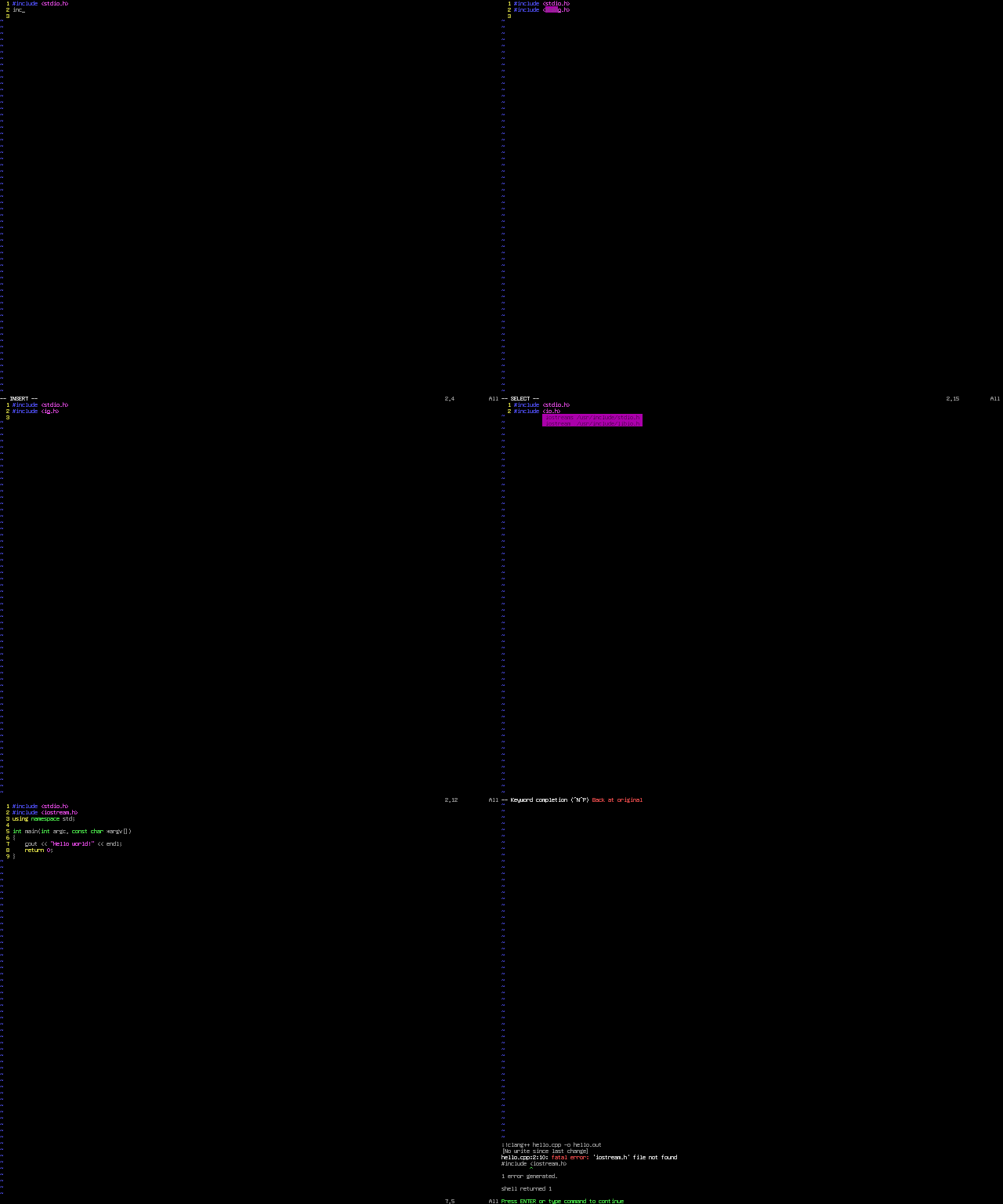
- Type
inc<Tab>.
- Vim-snippet completes the code, with
stdio.h as default. The file name of the included file is selected so that you can input something else.
- Since
cout is used later, we need to #include<iostream>. First type io to override the default input.
- Type
<C-n> or <C-p> to get a completion list.
- Select
iostream (without 's').
- Continue typing the whole program, and compile it.
- The source code fails!
Obviously, there's a syntax error at the line
#include<iostream.h>. Thinking about the auto-completion function again, one will notice that the correct step is to press
<Esc> after step 1, and use
ci< to clear the code inside the
<> block, that's a good try, but I personally think that the steps can be more beautiful.
1.2 clang_complete's solution
This is just a
part of correct steps. I leave the remaining parts of codes of this simple program into later sections.
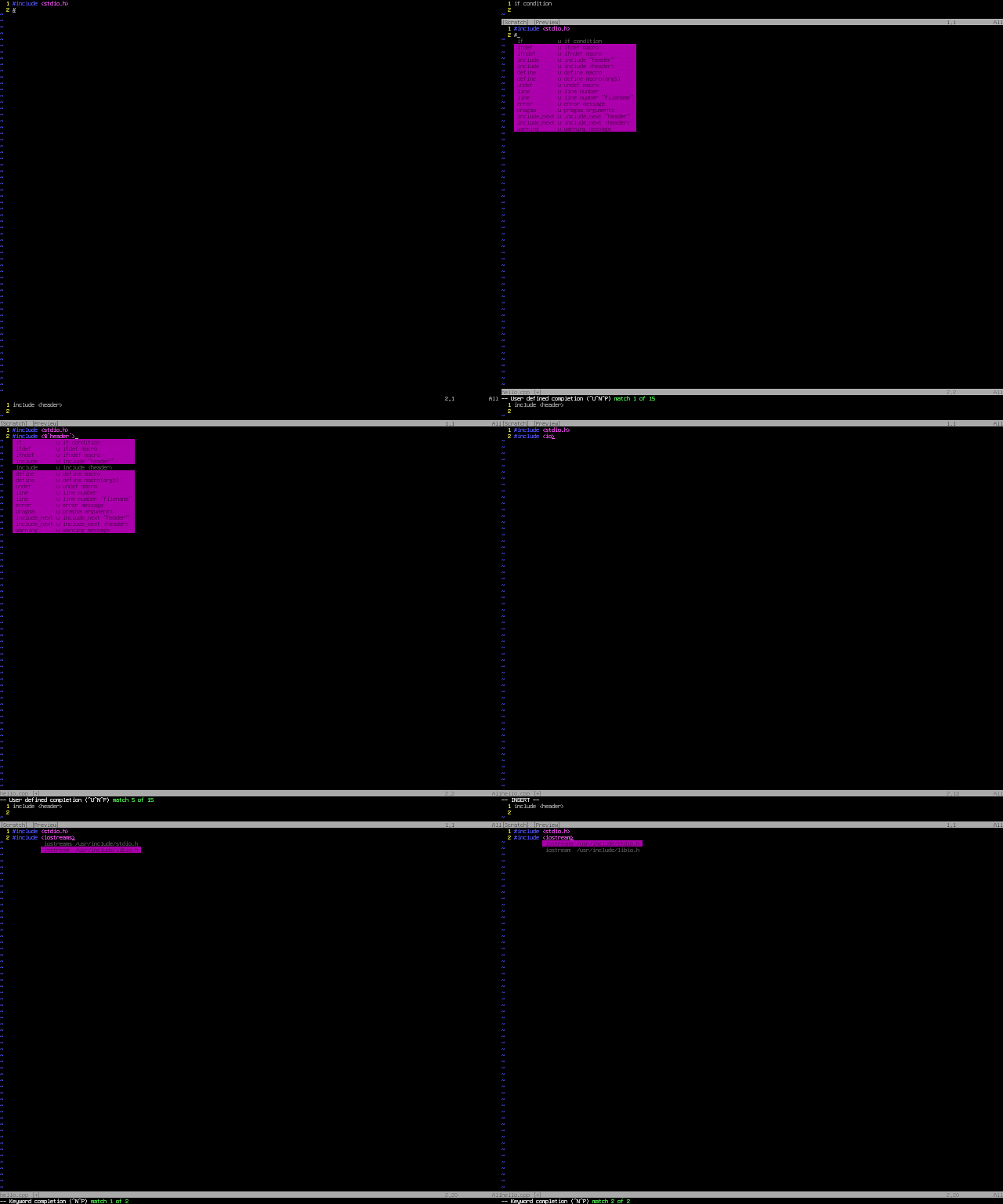
This time, after typing
# at the beginning of the line, press
<C-x><C-u> to use the automatic completion list, and choose the
# include option with the
$`header' surrounded by a
<> block,
not a double quote. Use
<Alt-Tab> to select the inner
<> block and type
io<C-n> to use the built-in (
not plugin) function to complete the code. (The
<Alt-Tab> keystroke doesn't work in GUI, since it means changing the window on focus.)
Note: In this method,
stdio.h needs to be included. Otherwise, the built-in insert completion popup menu containing
iostream will not be shown.
2. Completion of using namespace std;
- Without clang_complete: Directly type in everything, or use
<C-n> for word-by-word completion.
- With clang_complete: The completion menu can complete the whole line.
Analysis: Finding an item from a menu requires coordination of
our eyes and hands, while typing the code directly requires more memory.
For a newbie, the former should be easier since he/she doesn't waste
time to recall his/her memory. For a geek, the later should be faster
since the process has been repeated for many time. Luckily, being the
second in the popup list, the problem of reaction time does not matter
much if one looks at the list from the top to the bottom. Moreover,
typing the code directly may lead to syntax errors. This problem can be
overcome if one has the capability to read the error message from the
compiler and to browse code quickly.
 |
| Without clang_complete: word-by-word completion |
 |
| With clang_complete: completion of the whole line |
The remaining parts of this post
doesn't make use of the clang_complete plugin.
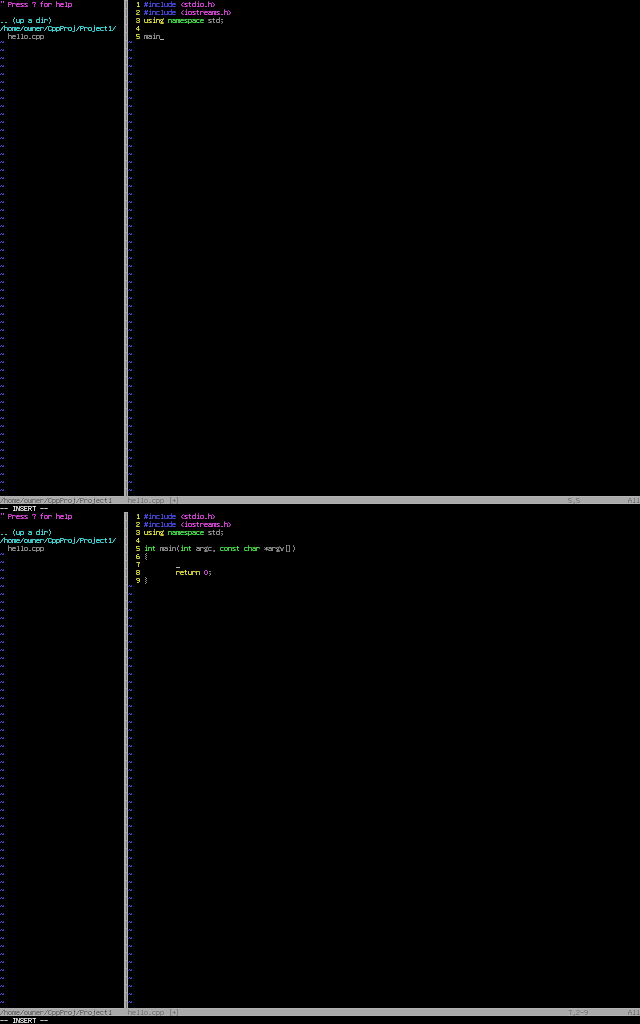
3. The main method
Just typing
main<Tab> will do. That's from vim-snippets.
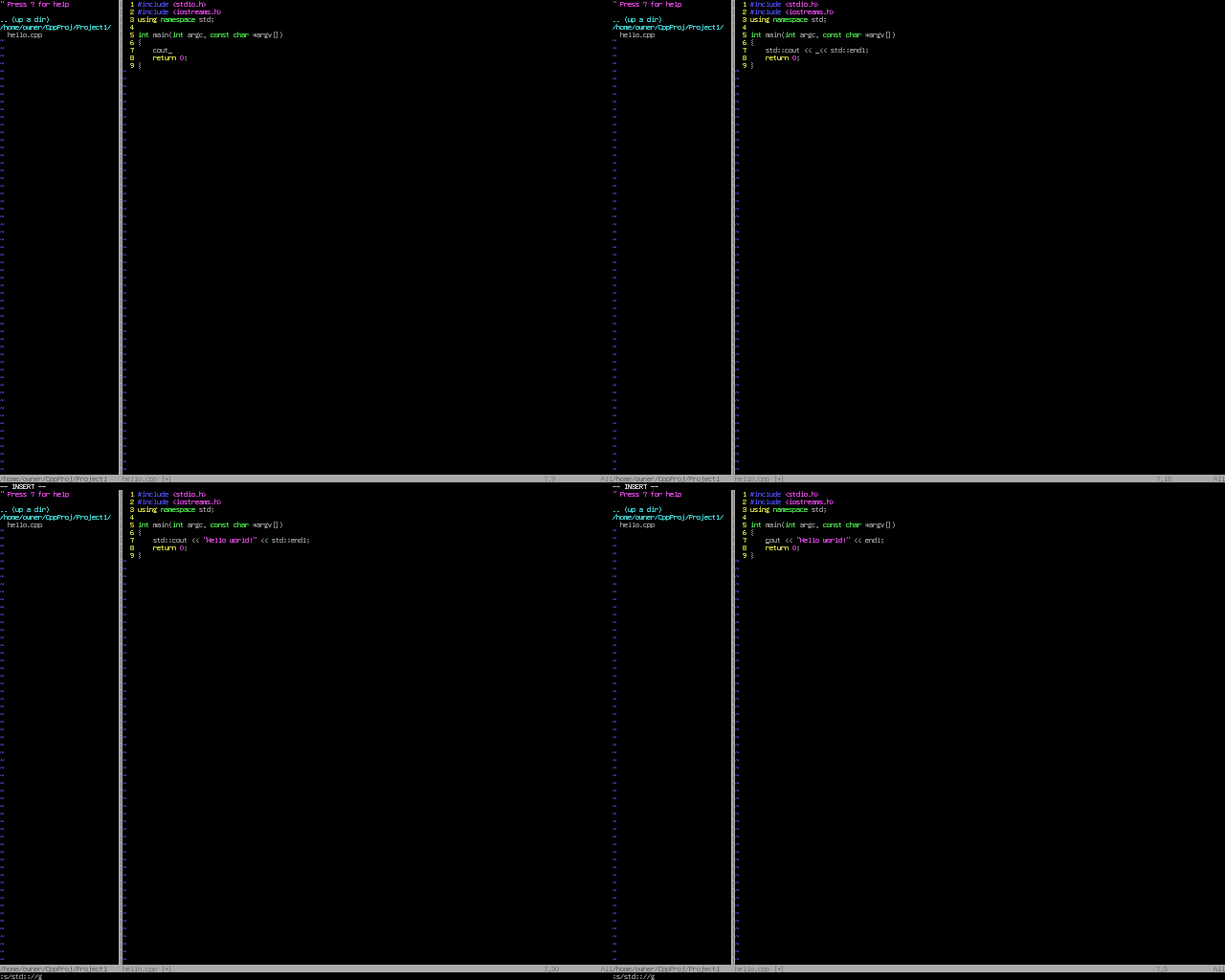
4. Greeting the world!
If you type
cout<Tab>, you'll get
std::cout<< <<std::endl;, with the cursor located in between the two whitespace characters in the middle. Using a regular expression to delete the
std:: in front of
cout and
endl.
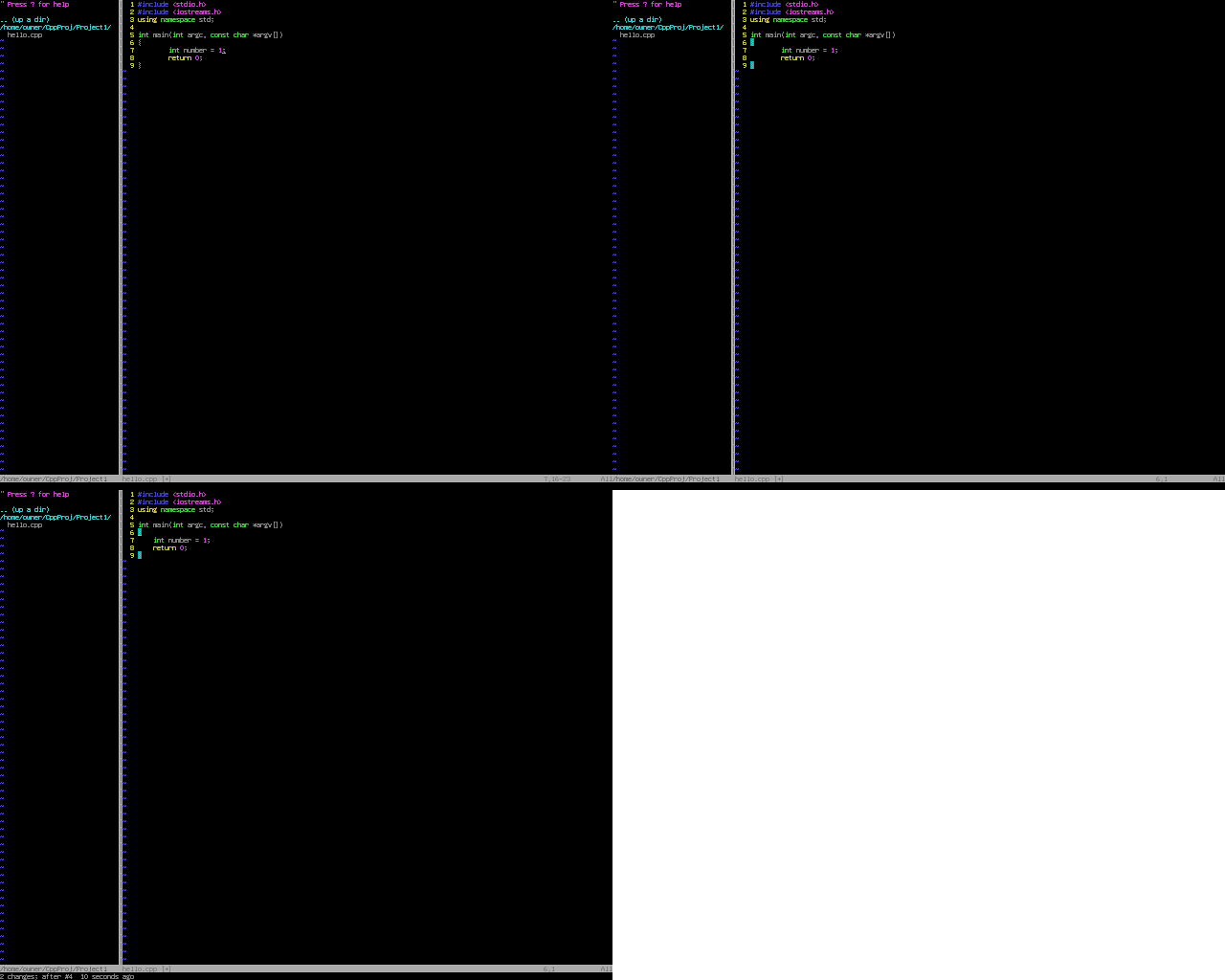
5. Getting the indentation correct
Modifying the c.snippet file
maybe a bit troublesome, and may bring strange consequences to the
plugin. If you don't have time to study the plugin, you may not like to
bother it. Manually decreasing the indentation of the line
return 0;
each time is not likely to be an elegant solution for Vim Lovers. The
actual way to fix the problem (using the command
gg=G in the normal mode) is on p. 73 of the book Vi iMproved—Vim.
[4]
6. Running the program
For some newbies, it might be too much for
them to digest if I discuss more on the creation of a sample makefile,
which automatically executes more complicated compiling commands with a
simple
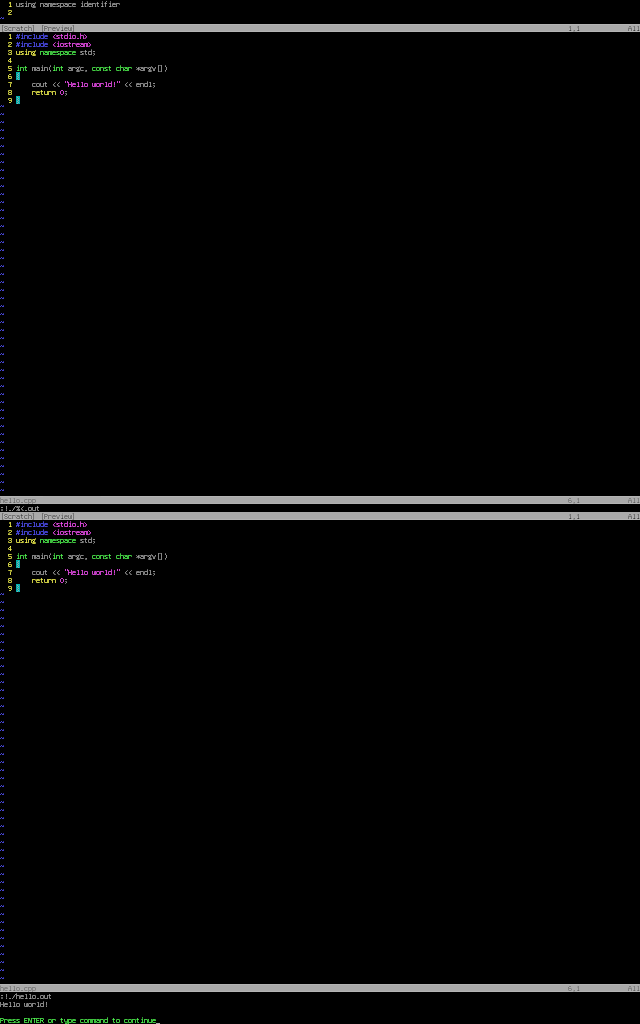
make command, searching "makefile tutorial" on the web will do.
If you don't like the clang compiler, just substitute
clang++ with
g++.
According
to Henri Poincaré, a French mathematician, things are beautiful if they
are simple. Repetition of facts build up our understanding. I end this
post with a short and simple command that can be repeatedly used to
compile .cpp source files with different file names. For more details
about that, refer to my earlier post titled
Fast Compilation and Execution of Source Code.
Reference:
[1]:
http://blog.chinaunix.net/uid-53564-id-3558537.html
[2]:
http://changyy.pixnet.net/blog/post/31706673-%5Bvim%5D-using-clang_complete-plugin-@-ubuntu-12.04
[3]:
http://blog.wuwon.id.au/2011/10/vim-plugin-for-navigating-c-with.html
[4]:
ftp://ftp.vim.org/pub/vim/doc/book/vimbook-OPL.pdf


